Get the Canvas App
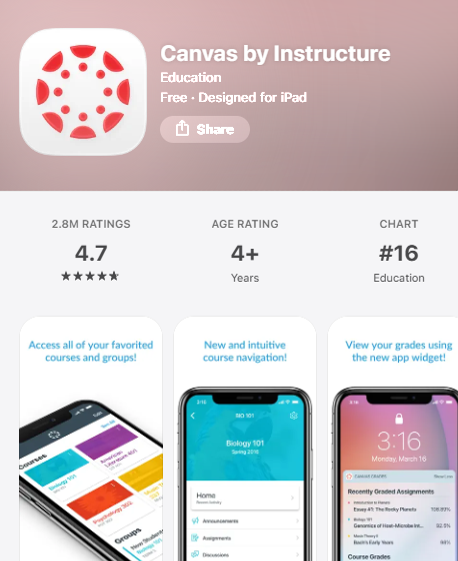
Download for iOS
- Go to the App Store
- Search for “Canvas”
- Choose the app that says “Canvas Student” with education under it (pencil icon)
- Click on “Get”
- Provide your Apple ID and password
- App will appear when download is complete
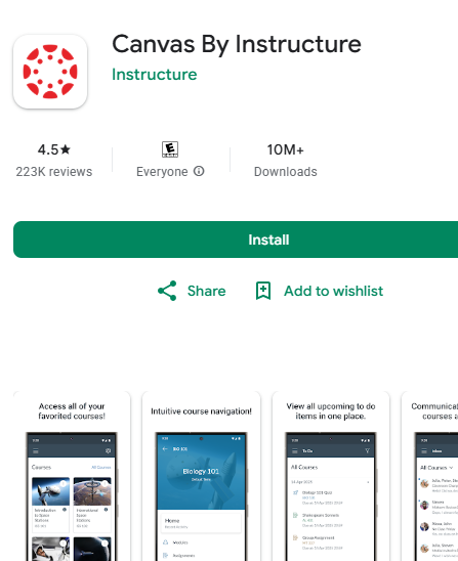
Download for Android
- Go to the Play Store
- Search for “Canvas”
- Choose the app that says “Canvas Student” with education under it (pencil icon)
- Click on “Get”
- Provide your username and password
- App will appear when download is complete
- Use directions above that correspond with your device and follow download prompts
- Open app
- Allow or do not allow push notifications to your preferences
- The app will prompt you for your school’s name – type “University of New Haven”
- The University of New Haven requires that you log in through the website – select web login
- Sign in using your university username and password
If you experience any issues please email amacdougall@newhaven.edu or canvas@newhaven.edu.
What you will see:
How to activate your account
Once you have downloaded the Canavas app, please follow these steps to activate your account.
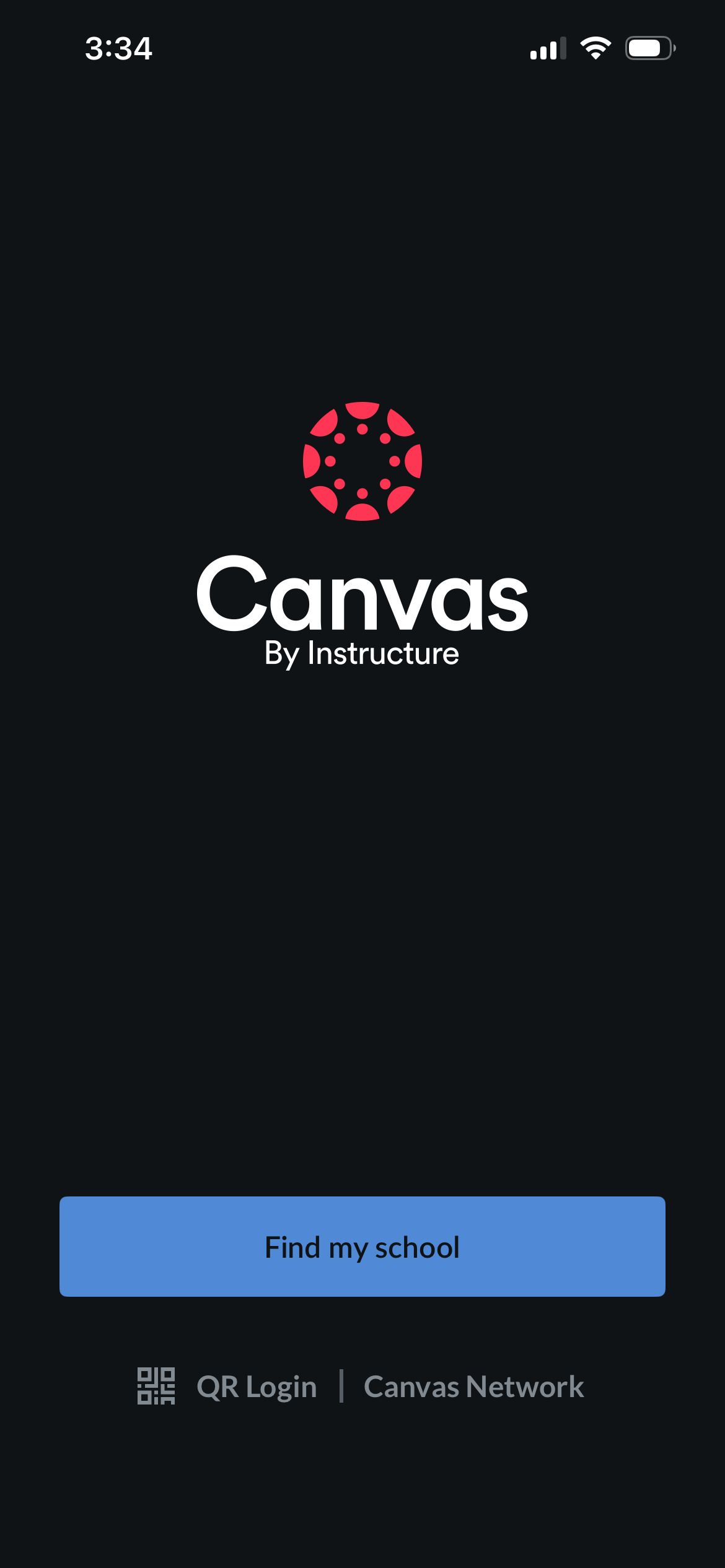
Step #1 - Open the Canvas app.
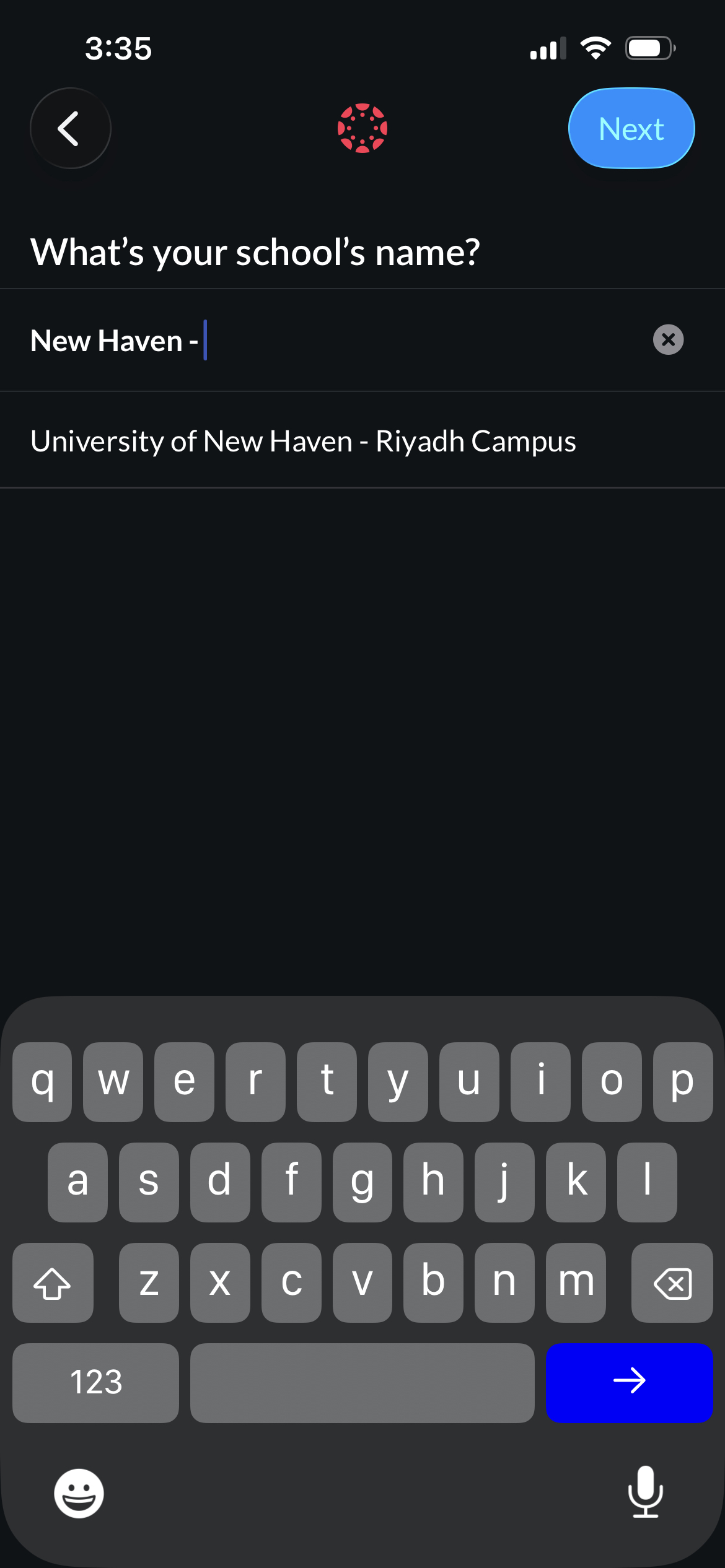
Step #2 - Search for "University of New Haven - Riyadh Campus"
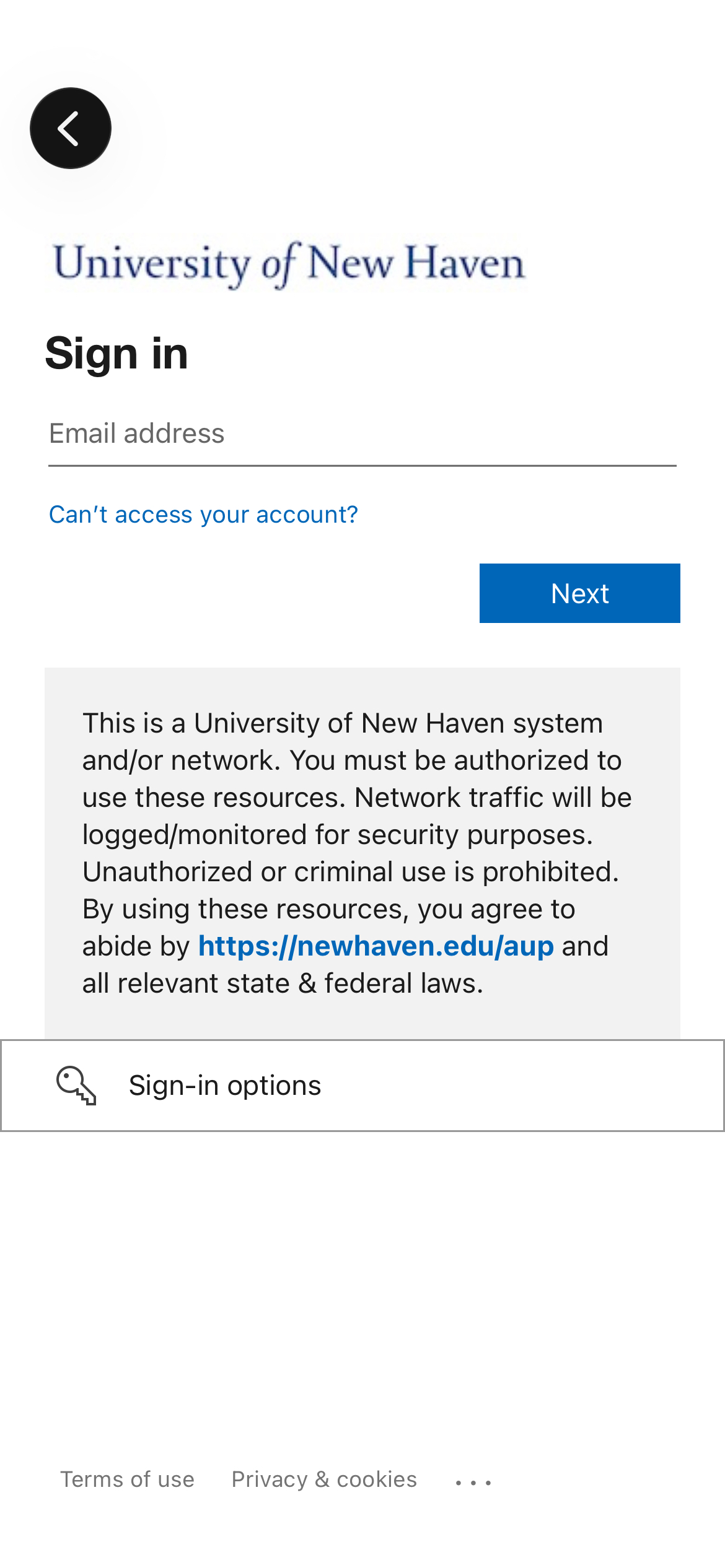
Step #3 - Sign into your email to begin the authentication process.
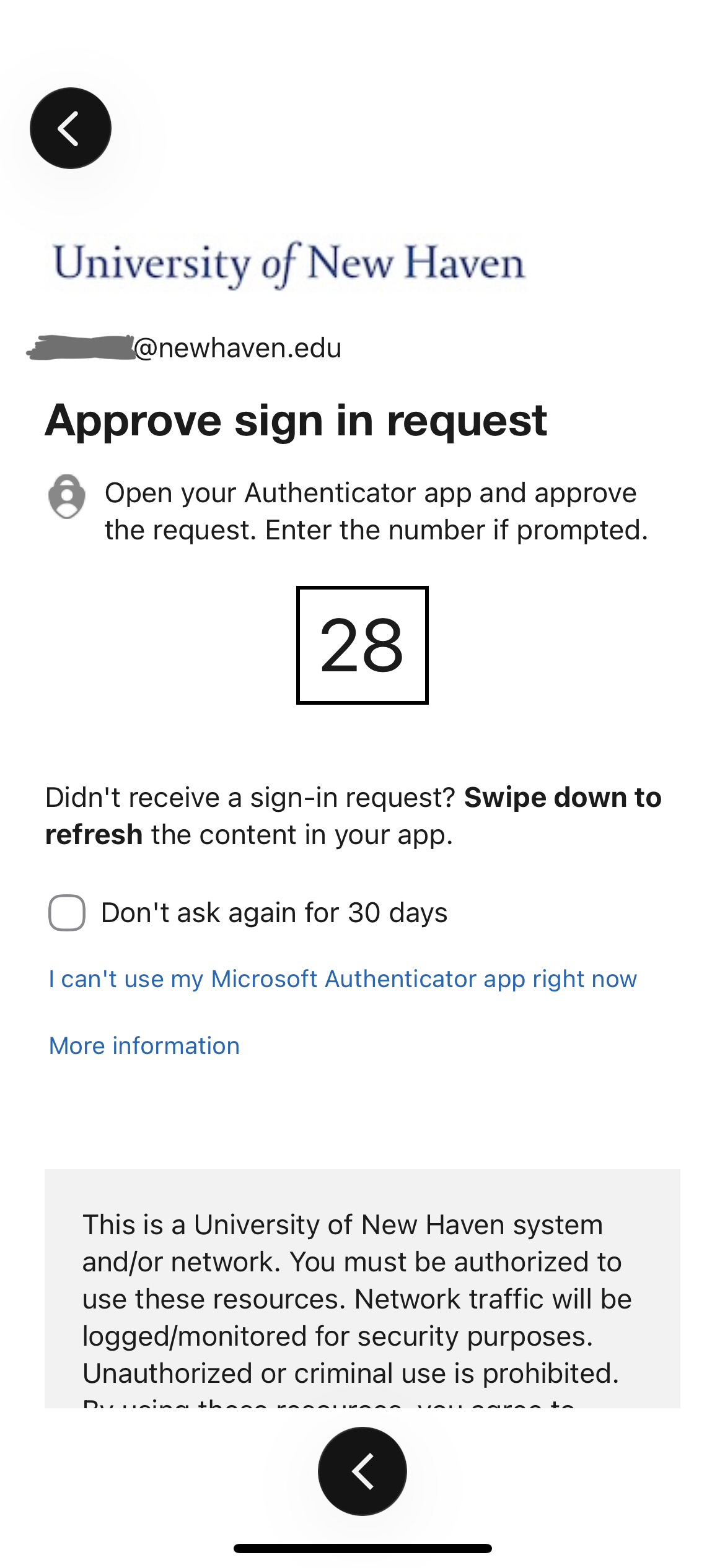
Step #4 - To approve the sign in, you will receive a two digit number that will be entered to authenticate your login.
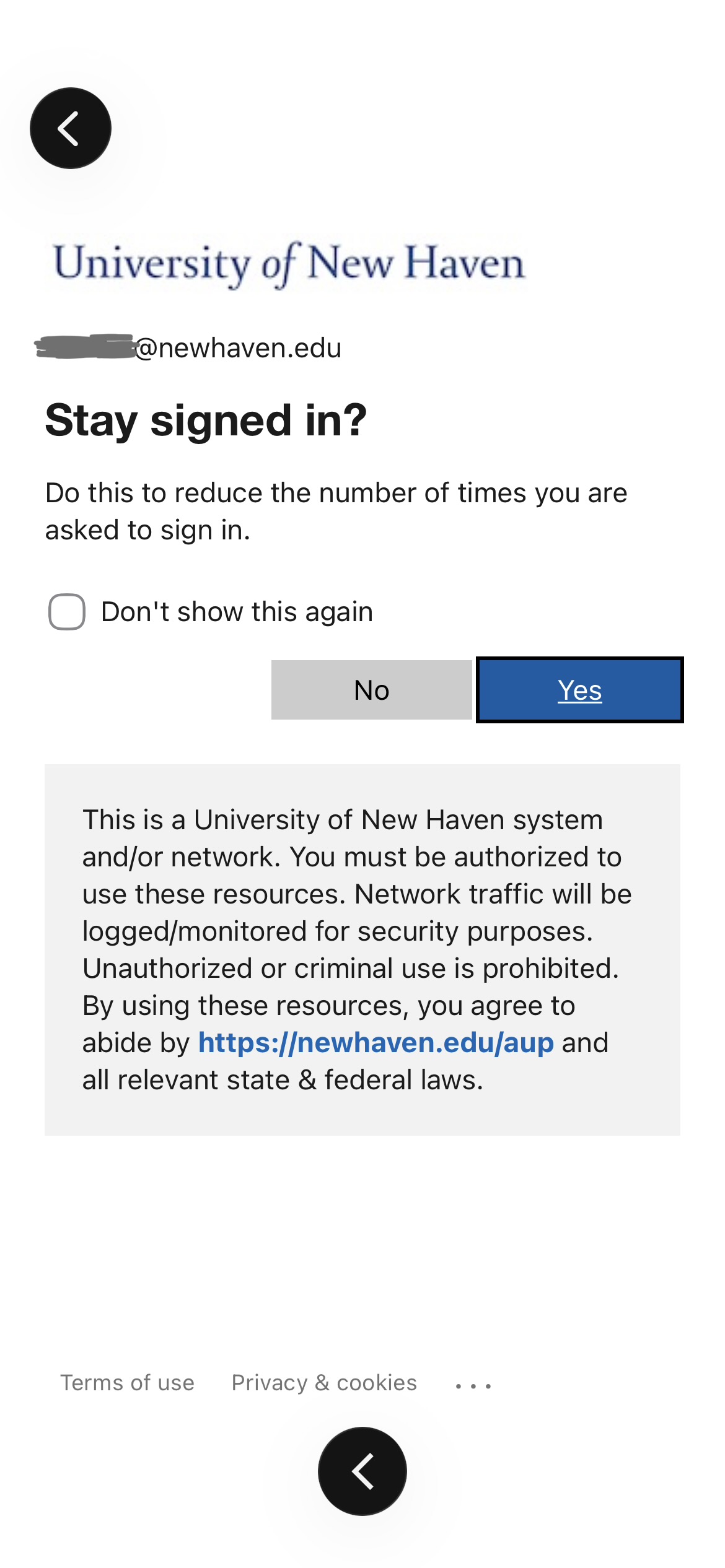
Step #5 - Select "Yes" on this page remain authenticated when using the Canvas app.
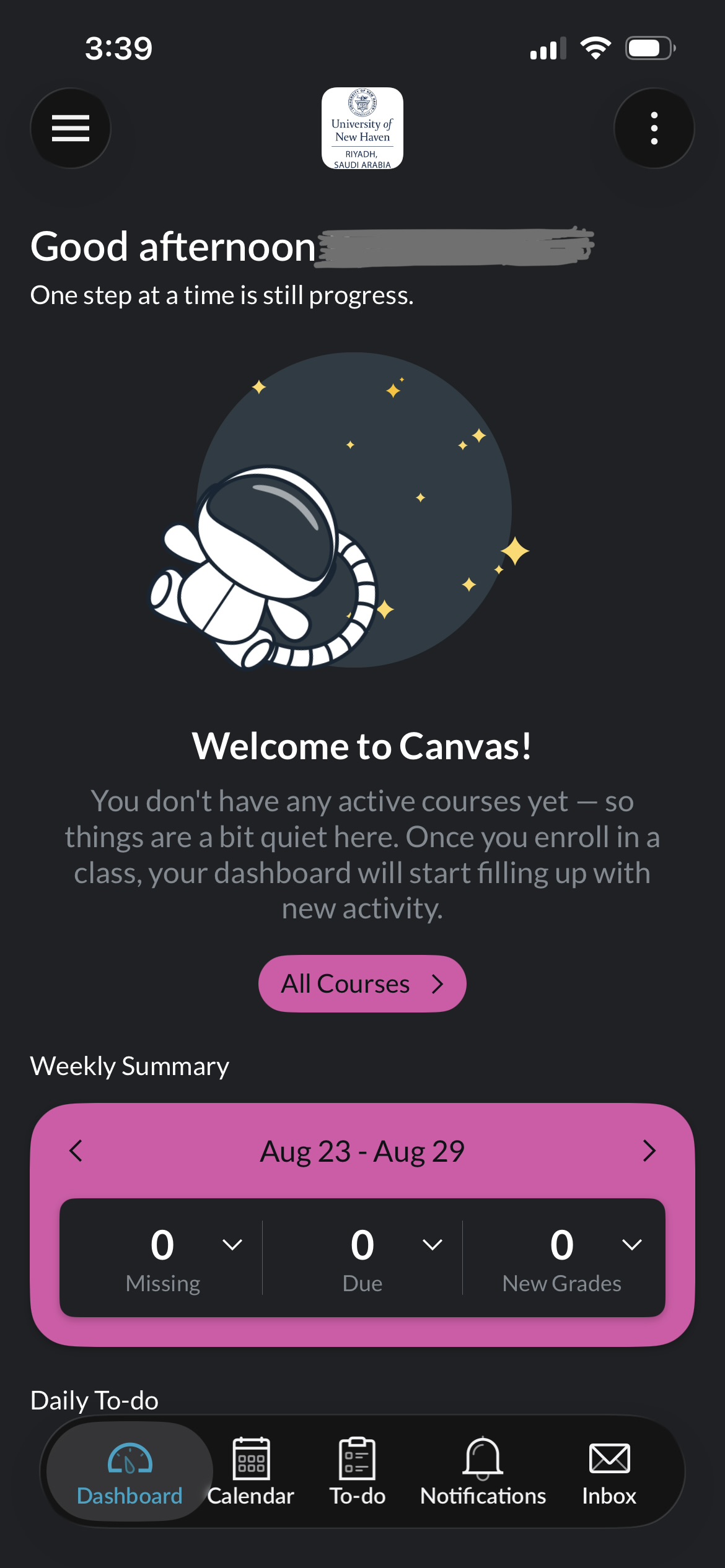
Step #6 - Once that is completed, you will be redirected to the NHU-Riyadh Canvas home page.